Expert Virus Removal Services and Technical advice.

We are Providing Computer users with Expert Virus Removal Services and Technical Advice.

Threats and their Removal.

Do you need a quick solution to a technical problem? With our live remote-assistance tool, a member of our support team can view your desktop and share control of your mouse and keyboard to get you on your way to a solution.

Spywares and their Removal.

Are you worried that your computer might be nfected with Spywares? Then this is were you can find Support.

Advices for Protecting the Computer.

Expert Advices for Protecting your computer from attacks from all threats

Different Anti Virus Software and Tools.

Familiarizing different Anti Virus Software and removal Tools.

Showing posts with label Virus Infection Symptoms. Show all posts

February 18, 2011

Remove virus which cause reboot.


A computer virus is a software program that can get onto your computer when you download a file that contains the virus. The virus must be removed in order for your computer to run correctly.

If you've recently visited a website or downloaded a program and suddenly your computer has been rebooting itself and crashing or running very slowly, you're most likely the victim of a computer virus. This article will help you to Remove the Virus That Makes Computer Restart Automatically

Instructions
  1. Download anti-virus software if you currently do not have such software on your computer. There are several available and some of the very good ones are actually free for personal usage.
  2. Visit the Microsoft update site in order to see if your computer needs any updates. It is vital to keep your operating system up-to-date since many of the software updates that release includes security updates. Before you can begin removing the virus, the operating system needs to be fully updated.
  3. Update your anti-virus software by clicking on the menu and choosing "Setting" or "Update." It is important to always keep the definitions updated on anti-virus software since new viruses are constantly circulating. Your anti-virus software sends out updates called "definitions" for you to install.
  4. Scan your computer using your anti-virus software and choose a thorough or deep scan so that it scans the entire file system. This can take several hours depending how many files you have to scan. As the scanner detects viruses, it may pop up a question asking what to do with it. Choose "Quarantine" or "Delete."
  5. Select the setting on your anti-virus software to download new definitions automatically. This will ensure you are always up-to-date and secured from computer viruses.
Tips & Warnings
  1. When looking for anti-virus software, try to find real user reviews on the Internet. A quick Internet search for "anti-virus reviews" will find several useful reviews; this will help you in deciding which program is best for you.
  2. If the virus has corrupted your hard drive to the point your computer will not start at all, the only option is to take it to a professional and have them reinstall your operating system, which will mean that you may lose all of your data

November 18, 2010

Crimeware: A new type of threat to our security.

      Crimeware is malicious software that is installed in a covert manner on computers and performs illegal actions unanticipated by a user running the software, which are intended to yield financial benefits to the distributor of the software. Main crimewares are similar to Trojans. There are differrent types of Trojans designed to do different things. For example, some are used to log every key you type (keyloggers), some capture screenshots when you are using banking websites, some download other malicious code,and others let a remote hacker access your system. Commonly they will steal your confidential information and send it to the criminal. Using these information, the cybercriminal is then able to steal your money.

During the past two years, crimeware attacks have increased at a far greater rate than the normal virus. International gangs of virus writers, hackers and spammers are joining forces to steal information and collect huge profits illegally.

Given the newness of this threat type, and the potential of how it might evolve in the future, further clarification and dissection of the definition of crimeware will likely be required.


How can you protect yourself from crimeware?
  • Install Internet security software.
  • Install operating system patches and application patches. Turn on Automatic Updates. And update Microsoft® Office regulary.
  • NEVER open an attachment sent in an unsolicited (spam) email. The same is true for email messages or IM (Instant Messaging) messages that contain links.
  • Update your security software regularly, at least once in a day. Keep your other applications updated.
  • For everyday use, create a separate user account with only limited access rights. By doing this, you limit a malicious program’s access to valuable system data.
  • Backup your data regularly to a CD, DVD, or external USB drive.

October 27, 2010

How do I know my antivirus software is working?

So you installed some antivirus software to keep your PC secure from viruses and other malicious software, but how do you know it’s really doing its job? Since antivirus software works "behind the scenes," there aren’t always obvious signs. Here’s how to see if it’s working.


Check your taskbar

The notification area of your Windows taskbar is located in the lower-right corner of your screen. In addition to displaying the time, it can show programs that are currently running, including your antivirus software. Exactly what this icon looks like depends on what antivirus software you’re running.

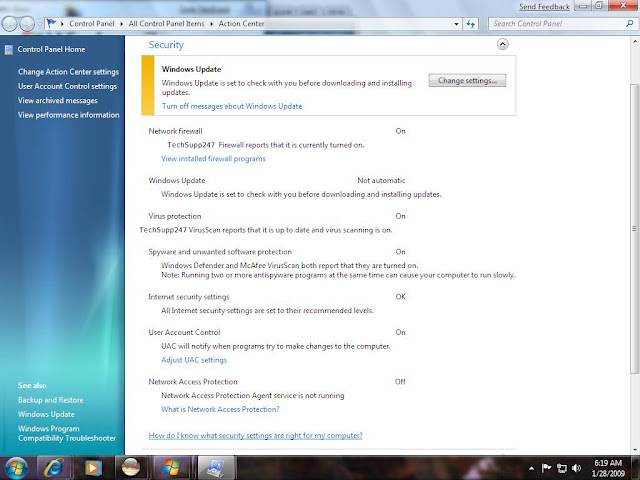
Use the Windows Security Center (Use Action Center in Windows 7)


The Windows Security Center will detect and list currently installed antivirus software, including third-party software. The Security Center runs in the background as you use your computer, constantly checking the state of three important security components: an Internet firewall, antivirus software, and Automatic Updates.
Note: The Windows Security Center may look and act differently if you have installed additional security software that changes its functionality. If so, contact the software vendor for assistance on managing your security settings.

Get to know your antivirus software

Antivirus software isn’t some deep, dark mystery, nor is it something to be intimidated about. When you install your antivirus software, a tutorial or wizard may appear, providing an overview of your antivirus software, detailing what it does, how to configure the settings, and other things. If something like this doesn’t automatically appear after the installation is finished, you can check the Help files for your antivirus software.

Keep default antivirus settings

In order for your antivirus software to do its job (and for you to be certain that it’s doing this job), there are certain settings that are enabled by default when you install the software and that shouldn’t be disabled for extended periods of time. If you have to disable these settings (for example, to install a new software program), be sure to re-enable them as soon as possible. These settings include:

"On-access" or "real-time" scanning: Disabling this option can leave you vulnerable to threats. An icon should appear in the notification area of the taskbar to indicate that this setting is enabled. If you click the icon, you may see details about your antivirus software settings. (Clicking the icon for your antivirus software in the Programs list on the Start menu should give you the same information.)

Scheduled scan of your hard disk and other drives: Your antivirus software should be set to perform a scan of your hard disk on a regular basis.

Scan all e-mail: Your antivirus software should be configured to scan all incoming e-mail messages for viruses.

Stay current

Outdated antivirus software becomes less effective because your virus definitions must be updated regularly to help protect you against the latest threats. Here are some tips to make sure your antivirus software stays current:
  • Purchase an annual subscription from your antivirus software company.
  • Open your antivirus program from the Start menu and look for a recent update status. If you still aren't sure if your antivirus software is up to date, contact your antivirus software provider for more information.

October 18, 2010

GMER

GMER is an application that detects and removes rootkits.
It scans for:
  • hidden processes
  • hidden threads
  • hidden modules
  • hidden services
  • hidden files
  • hidden Alternate Data Streams
  • hidden registry keys
  • drivers hooking SSDT
  • drivers hooking IDT
  • drivers hooking IRP calls
  • inline hooks


Download GMER


Note: You should use this tool very carefully, and only after you have exhausted other options.
 

October 13, 2010

What are the symptoms of an infected computer?

It’s not always easy to tell if your computer has been compromised. More than ever before, the authors of viruses, worms, Trojans and spyware are going to great lengths to hide their code and conceal what their programs are doing on an infected computer.

 It’s very difficult to provide a list of characteristic symptoms of a compromised computer because the same symptoms can also be caused by hardware and/or software problems. Here are just a few examples:
  • Your computer behaves strangely, i.e. in a way that you haven’t seen before.
  • You see unexpected messages or images.
  • You hear unexpected sounds, played at random.
  • Programs start unexpectedly.
  • Your personal firewall tells you that an application has tried to connect to the Internet (and it’s not a program that you ran).

Related Posts Plugin for WordPress, Blogger...

Search This Blog

Followers

Categories

Twitter Delicious Facebook Digg Stumbleupon Favorites More