Expert Virus Removal Services and Technical advice.

We are Providing Computer users with Expert Virus Removal Services and Technical Advice.

Threats and their Removal.

Do you need a quick solution to a technical problem? With our live remote-assistance tool, a member of our support team can view your desktop and share control of your mouse and keyboard to get you on your way to a solution.

Spywares and their Removal.

Are you worried that your computer might be nfected with Spywares? Then this is were you can find Support.

Advices for Protecting the Computer.

Expert Advices for Protecting your computer from attacks from all threats

Different Anti Virus Software and Tools.

Familiarizing different Anti Virus Software and removal Tools.

February 8, 2011

How to remove Mc AVG 2011


Mc AVG 2011 is a bogus computer security software that was known to mimic the graphical user interface of a popular Av application. McAVG and Mc AVG 2011 virus will produce an extensive display of pop-up alerts to convince computer users that computer is infected. Each time Windows is started, Mc AVG 2011 also run its own virus scan that also displays dozens of threats. This results were found to be misleading and are inaccurate. After all, it was diagnosed that McAVG does not contain real AV components to protect a computer neither remove any threats. It just uses a plain scare tactics to force users into obtaining the Mc AVG 2011 program.


Steps to Follow

1. Restart your computer in SafeMode
 After Power-On the computer, just before Windows start, press F8
  From the selections, Select SafeMode

2. Remove Registry entries that the threat added.

Click Start > Run
Type in the field, regedit
Delete the following entries
HKEY_CURRENT_USER\Software\Microsoft\Windows NT\CurrentVersion\Winlogon “Shell” = %UserProfile%\Application Data\.exe

Note: You must back up your registry.

3. Delete malicious files that the threat added:

Browse and delete the following files
%AppData%\[random].exe
 If no location is given, click Start>Search> and search for the files.
If cannot be deleted, press Ctrl+Alt+Del to access Task Manager, see if the file is running in the process. If it is, select the file and click End Process.
Perform file delete again.

4. Scan computer with Antivirus Program
Update antivirus program
Scan computer and delete all detected threats.

February 7, 2011

How to remove Virus Remover Professional


How to remove Virus Remover Professional


Virus Remover Professional is a rogue anti-virus program – a fake virus remover, which relies on malicious methods both to spread and to sell. This parasite uses the infamous Trojan Zlob or Vundo to enter the system. Virus Remover Professional also makes use of misleading advertising to trick users into purchasing its “full version”.


Upon entering the system, Virus Remover Professional will waste no time and immediately start flooding the user with popup and fake system notifications, supposedly to inform him of an infection or multiple infections present on the system. Virus Remover Professional performs fake system scans, which produce falsified results, leading the user to believe that he is infected. As if that’s not enough, Virus Remover Professional will also cause a significant decrease in system performance.

Steps to Follow

Stop these Virus Remover Professional processes

virusremover.exe


Remove these Virus Remover Professional Registry Entries

HKEY_CURRENT_USER\Software\LastSun Ltd.
HKEY_LOCAL_MACHINE\SOFTWARE\Microsoft\Windows\CurrentVersion\Uninstall\Virus Remover Professional_is1
HKEY_CURRENT_USER\Software\Microsoft\Windows\CurrentVersion\Run "Virus Remover Professional"

           
Remove these Virus Remover Professional files

c:\Documents and Settings\All Users\Start Menu\Programs\Virus Remover Professional
c:\Documents and Settings\All Users\Start Menu\Programs\Virus Remover Professional\Order Full Version NOW!.lnk
c:\Documents and Settings\All Users\Start Menu\Programs\Virus Remover Professional\Virus Remover Professional.lnk
c:\Documents and Settings\All Users\Start Menu\Programs\Virus Remover Professional\Visit Virus Remover Professional Homepage.lnk
c:\Documents and Settings\Bleeping\Application Data\LastSun Ltd
c:\Documents and Settings\Bleeping\Application Data\LastSun Ltd\Virus Remover Profesional
c:\Documents and Settings\Bleeping\Application Data\LastSun Ltd\Virus Remover Profesional\virusremover.exe
c:\Documents and Settings\Bleeping\Application Data\Microsoft\Internet Explorer\Quick Launch\Virus Remover Professional.lnk
c:\Documents and Settings\Bleeping\Desktop\Virus Remover Pro..lnk
c:\Program Files\Virus Remover Professional
c:\Program Files\Virus Remover Professional\hp.url
c:\Program Files\Virus Remover Professional\license.rtf
c:\Program Files\Virus Remover Professional\order.url
c:\Program Files\Virus Remover Professional\unins000.dat
c:\Program Files\Virus Remover Professional\unins000.exe
c:\Program Files\Virus Remover Professional\virusremover.exe

February 4, 2011

Reduce Computer Security Vulnerability


If you are the victim of a computer virus, a Trojan or other malicious spyware, there are several steps you can take to reduce computer security vulnerability. Some steps involve manual tweaks, as well as help from computer security software.

Virus Support: Advanced Virus Remover Vulnerabilities


         Advanced Virus Remover Vulnerabilities popup is Adware that can present itself as a toolbar,logs your internet browsing history,displays lots of annoying advertisements,infect your system via spyware or freeware, may repair its files, spread or update by itself, prove difficult or impossible to remove, violates your privacy and compromises your security.

February 3, 2011

Blue Screen Computer Virus


The SmitFraud Virus infects a computer and turns the screen blue, like the screen you see when there's a really bad Windows Error, hence the nickname: Blue Screen Virus.

Smitfraud logs the web pages you visit and sends you fake antivirus programs without your permission that turn out to be more malware programs. Follow these instructions to find and download SmitFraudfix.exe, and get this virus off your computer.

Do Apple Computers Get Viruses?


While it is entirely possible for Apple computers to get viruses, ultimately the answer really isn't that simple. When compared to the number of viruses that users of Microsoft's Windows operating system can pick up, Apple computers get very few viruses.

As any user of Windows can attest, it can almost be hard not to pick up a computer virus sometimes, especially when using the Internet. This is due to a variety of very specific reasons.

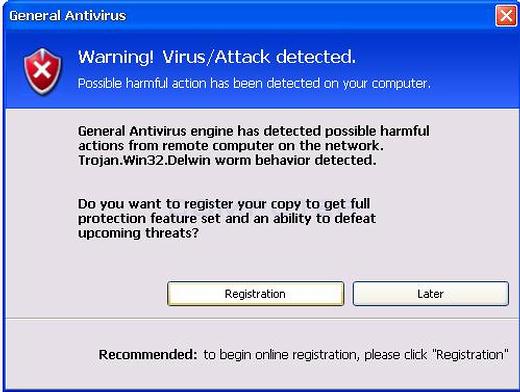
How to remove “Warning! Virus/Attack detected” Pop up manually


How to remove “Warning! Virus/Attack detected” Pop up manually


Warning! Virus detected is determined by Tee Support Labs as fake security alert which release by Smart Security. Warning! Virus/Attack detected” alert is simply a sign of your computer being infected with the nasty rogue anti-spyware called General Antivirus. The fake program spreads via trojan and imitates fictitious security issues


Here is a small tutorial for removing  “Warning! Virus/Attack detected” Pop up.


Delete “Warning! Virus/Attack detected” Pop up corrupt files:

%Documents and Settings%\All Users\Desktop\General Antivirus.lnk
%Documents and Settings%\All Users\Start Menu\Programs\General Antivirus
%Documents and Settings%\All Users\Start Menu\Programs\General Antivirus\General Antivirus Home Page.lnk
%Documents and Settings%\All Users\Start Menu\Programs\General Antivirus\General Antivirus.lnk
%Documents and Settings%\All Users\Start Menu\Programs\General Antivirus\Purchase License.lnk
%UserProfile%\Application Data\General Antivirus
%UserProfile%\Application Data\General Antivirus\settings.ini
%UserProfile%\Application Data\General Antivirus\uill.ini
%UserProfile%\Application Data\General Antivirus\unins000.exe
%UserProfile%\Application Data\General Antivirus\Uninstall General Antivirus.lnk
%UserProfile%\Application Data\General Antivirus\db
%UserProfile%\Application Data\General Antivirus\db\config.cfg
%UserProfile%\Application Data\General Antivirus\db\Timeout.inf
%UserProfile%\Application Data\General Antivirus\db\Urls.inf
%UserProfile%\Application Data\Microsoft\Internet Explorer\Quick Launch\General Antivirus.lnk
%UserProfile%\Application Data\Microsoft\Windows\winlogon.exe
%UserProfile%\Local Settings\Application Data\Microsoft\Internet Explorer\iGSh.png
%UserProfile%\Local Settings\Application Data\Microsoft\Internet Explorer\iMSh.png
%UserProfile%\Local Settings\Application Data\Microsoft\Internet Explorer\iPSh.png
%UserProfile%\Local Settings\Application Data\Microsoft\Internet Explorer\iv.exe
%UserProfile%\Local Settings\Application Data\Microsoft\Windows\log.txt
%UserProfile%\Local Settings\Application Data\Microsoft\Windows\pguard.ini
%UserProfile%\Local Settings\Application Data\Microsoft\Windows\services.exe
%UserProfile%\2saSddPYaWAasRsE-thief.jpg
%Program Files%\Common Files\file.exe
%Program Files%\Common Files\GeneralAntivirus.exe
%Program Files%\General Antivirus
%Program Files%\General Antivirus\activate.ico
%Program Files%\General Antivirus\Explorer.ico
%Program Files%\General Antivirus\GenAvir.exe
%Program Files%\General Antivirus\unins000.dat
%Program Files%\General Antivirus\uninstall.ico
%Program Files%\General Antivirus\working.log
%Program Files%\General Antivirus\db
%Program Files%\General Antivirus\db\DBInfo.ver
%Program Files%\General Antivirus\db\ga090122.db
%Program Files%\General Antivirus\Languages
%WINDOWS%\system32\log.txt

Remove “Warning! Virus/Attack detected” Pop up associated registry entries:

HKEY_LOCAL_MACHINE\SOFTWARE\Microsoft\Windows\CurrentVersion\Uninstall\General Antivirus_is1
HKEY_LOCAL_MACHINE\SYSTEM\ControlSet001\Enum\Root\LEGACY_ITGRDENGINE
HKEY_LOCAL_MACHINE\SYSTEM\ControlSet001\Services\ITGrdEngine
HKEY_LOCAL_MACHINE\SYSTEM\CurrentControlSet\Enum\Root\LEGACY_ITGRDENGINE
HKEY_LOCAL_MACHINE\SYSTEM\CurrentControlSet\Services\ITGrdEngine
HKEY_CURRENT_USER\Software\Microsoft\Internet Explorer “ParameterName”
HKEY_CURRENT_USER\Software\Microsoft\Internet Explorer “prob”
HKEY_CURRENT_USER\Software\Microsoft\Internet Explorer “prob1″
HKEY_CURRENT_USER\Software\Microsoft\Internet Explorer “prob2″
HKEY_CURRENT_USER\Software\Microsoft\Internet Explorer “probRedir”
HKEY_CURRENT_USER\Software\Microsoft\Internet Explorer “PrS”
HKEY_CURRENT_USER\Software\Microsoft\Internet Explorer “subscriber”
HKEY_CURRENT_USER\Software\Microsoft\Internet Explorer “uid”
HKEY_CURRENT_USER\Software\Microsoft\Windows\CurrentVersion\Policies\Explorer\Run “iv”
HKEY_CURRENT_USER\Software\Microsoft\Windows\CurrentVersion\Run “General Antivirus”
HKEY_CURRENT_USER\Software\Microsoft\Windows\CurrentVersion\Run “Microsoft Windows logon process”

Note: Manual removal of “Warning! Virus/Attack detected” Pop up is a procedure of high complexity and should be performed with extreme caution. Lack of the required skills and even the slightest deviation from the instructions may lead to irreparable system damage

Related Posts Plugin for WordPress, Blogger...

Search This Blog

Followers

Categories

Twitter Delicious Facebook Digg Stumbleupon Favorites More